
Hello Roblox gamers! It is now time to play your favorite Roblox games on your PC with smoother controls and better performance, and bigger screen experience. Now there is no need to rely on uncomfortable mobile touch controls to play Roblox. With this guide, you'll learn every step to set up LDPlayer 14, download and install Roblox, and start playing on your PC. We'll also bring the useful LDPlayer features to help you enjoy the different Roblox games in the best way with the smoother performance.
Contents
How to Download and Play Roblox on PC with LDPlayer in 4 Easy Steps
Step 1: Download and Install the Official LDPlayer 14 Emulator
The first thing that you require to play Roblox on PC is a reliable Android emulator. Among all the Android emulators available in the market today, LDPlayer 14 is the best choice, it provides smoother performance and smooth controls via keyboard and mouse along with enhanced graphics.
1.1 – Open up your web browser and vist to the official LDPlayer website. Then download the latest version, LDPlayer 14.
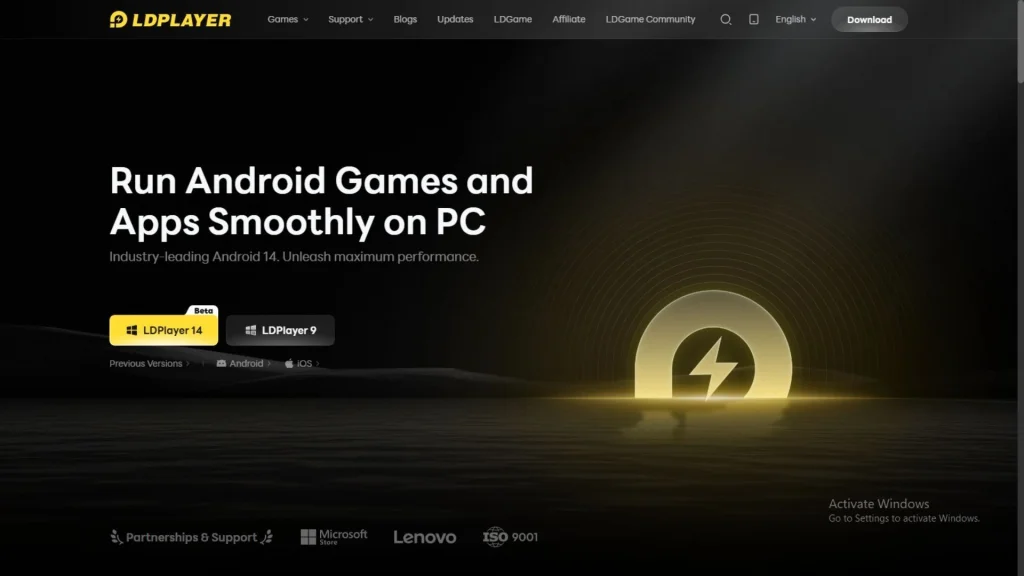
1.2 – Once done with the download process, find the installation file and double click to install LDPlayer
1.3 – Click on the Install button and wait for a moment until the LDPlayer gets installed on your computer.
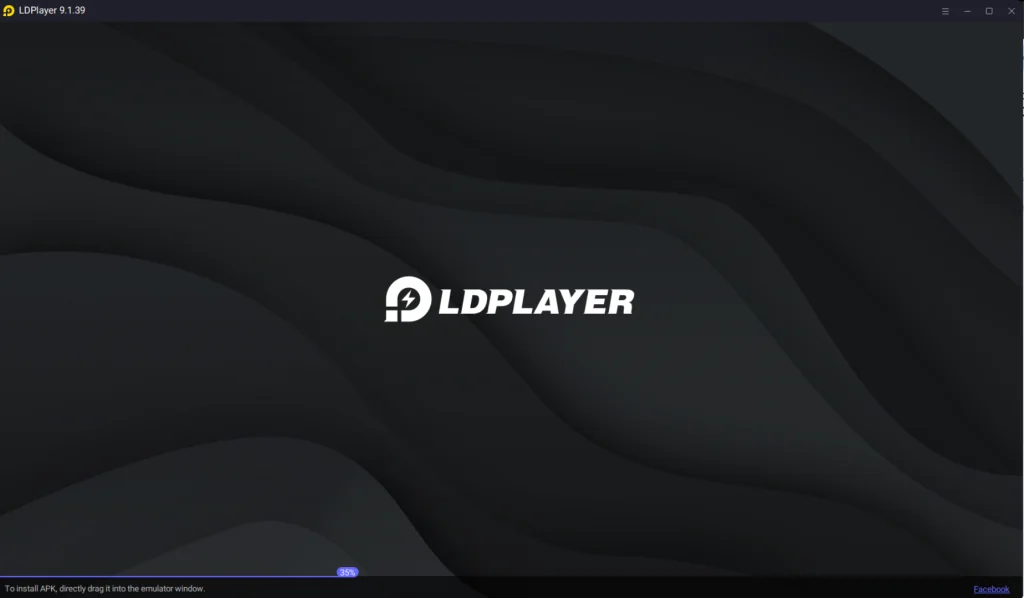
1.4 – When the installation process gets completed, launch the LDPlayer 14 from your desktop. Now you have your Android emulator all set to start downloading the Roblox app on PC.
Step 2: Search and Download Roblox from LD Store
The LDPlayer 14 is installed successfully on your PC, the next step is to search for the Roblox and download it through the LDPlayer's special LD Store.
2.1 – Launch LDPlayer 14 on your PC and open the LD Store from the emulator’s home screen.
2.2 – Look for the search bar available at the top of the screen on LD Store, and type "Roblox" inside the search bar to find the Roblox app. Please ensure that you download the official Roblox app developed by Roblox Corporation.
2.3 – Click on the Install button next to the Roblox logo. Then the download process will start automatically within LDPlayer.
2.4 – If LDPlayer redirects you to the Google Play Store during installation, move to Step 3 to create your google play store account. If not, all you have to do is wait until Roblox is downloaded to your instance and move to Step 4.
Step 3: Setting Up Your Google Play Store Account (If Required)
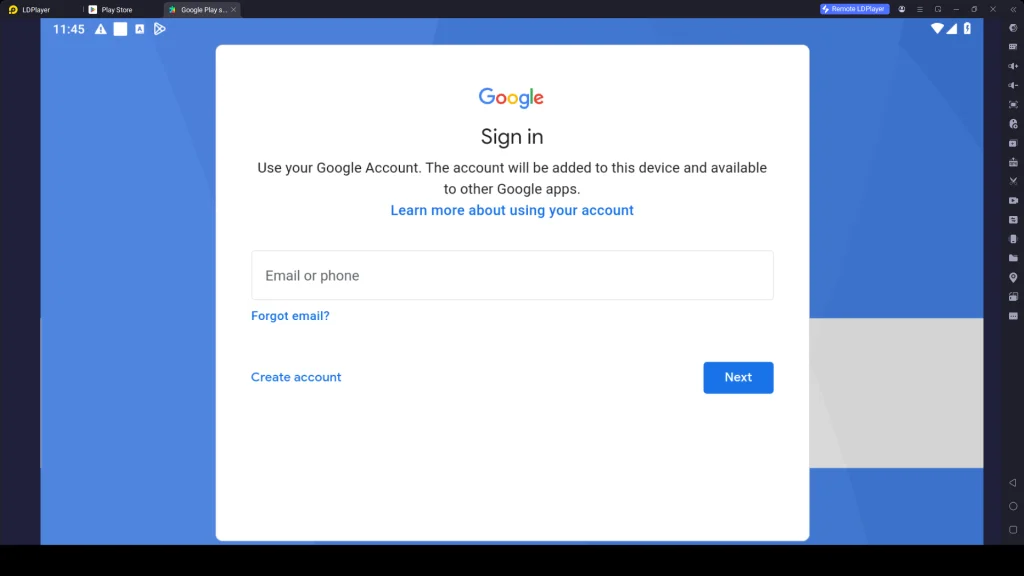
If the Google Play Store opens when you try to download Roblox, you'll need to sign in with your Google Account first. Once your account is set up, you can download Roblox and other Android apps from the Play Store without any issues.
3.1 – When prompted to log in into the Google Play store you have to click "Sign in" to get started setting up your Google account.
3.2 – Input your Gmail email address and password. If you don't have a Google account yet, click Create account to set one up.
3.3 – Go through the verification process if you're asked to verify your identity by Google.
3.4 – Once your account is successfully verified, follow the on-screen instructions to finish the setup process.
3.5 – After completing the setup, you’ll gain access to the Google Play Store for your chosen region using this account. You can then download apps and games, and make in-game purchases directly through your Google Account.
3.6 – Once the Google Play Account is fully set up, return to the Play Store search bar, type “Roblox” exactly, and begin downloading and installing the game.
3.7 – Wait for the download and installation to finish completely. You’ll see a notification in the bottom-left corner of the screen once the process is done.
3.8 – When the installation is complete, the Roblox icon will appear on the LDPlayer home screen. Double click the icon and launch Roblox on your PC.
Step 4: Log in to Roblox and Download Roblox Additional Data Files
The first time you play Roblox using LDPlayer 14, you might have to download additional data to launch Roblox. These additional data are required to run the app properly and you need to log in or create a Roblox account to begin your gaming adventure.
4.1 - Open the LDPlayer 14 and then click on the Roblox icon in the LDPLayer home screen to open the Roblox.
4.2 – Then you will be prompted to download some additional data which are important for the smooth functioning of the Roblox app. Click on the Confirm button to start downloading the required data. This will take a few more minutes depending on your internet speed.
4.3 – Once everything is done, open Roblox to log in to an existing account or register an account in Roblox.
4.3 – After all required files have been downloaded and installed, wait for Roblox to load completely. Then, you can sign in with your existing Roblox account or create a new account.
4.4 – Enter your Roblox login details to access your existing account. If you are a new player, choose the account creation option and complete the required steps.
4.5 – After successfully logging into Roblox, you are ready to enjoy Roblox on LDPlayer 14 through your PC. Now, you can explore your favorite Roblox games with smoother performance, improved controls, and a better experience on a larger screen with enhanced graphics quality.
Common Problems and Easy Fixes on LDPlayer
When you start your Roblox adventures through the Roblox app on LDPlayer, you may face different issues such as lag, loading errors, or performance drops. Don't worry, these issues are common with an emulator and can be fixed very easily. Below are some issues you may face and their easy fixes:
Fix Graphics Glitches and Rendering Issues
Sometimes while enjoying Roblox games using LDPlayer, you may experience some texture errors, flickering of the screen, lack of object in the game scene, or visual glitches. . This occurs due to some graphical errors related to incompatibility of graphics engine settings, out-of-date GPU driver, and incorrect display settings.
How to Fix Graphics Problems:
-
Change the Graphics Engine from the Settings of LDPlayer. Switch between OpenGL and DirectX then close LDPlayer and launch it again.
-
Update your graphics driver to the latest version from NVIDIA, AMD, or Intel.
-
If your PC has a dedicated graphics card, set LDPlayer to use the High Performance GPU.
-
Reduce the resolution of the screen and in-game graphics settings for better performance.
-
Enable virtualization (VT (Intel VT-x or AMD-V) in your BIOS.
-
Close unnecessary background programs to free up CPU and RAM.
-
If nothing works, reinstall the latest version of LDPlayer 14 to replace any damaged files.
Fix Network Connection Issue
A good network connection is key to exploring various adventures in Roblox. But sometimes, Roblox players might have network connection problems when playing Roblox using LDPlayer. The problem may arise from poor internet connections, interference from a VPN, outdated version of the emulator, blocking by the firewall, or corruption of the network settings within LDPlayer.
How to Fix Network Connection Problems:
-
Make sure that you have a good internet connection on your PC.
-
Restart both your PC and router to fix temporary network glitches.
-
Disable any VPN services running on your computer.
-
Check LDPlayer's network settings and ensure the network connection option is enabled.
-
Reset your network settings on Windows.
-
If the problem still happens, reinstall LDPlayer to reset all network configurations. Make sure to install the newest version, LDPlayer 14, for a better experience.
Enhance Your Roblox Experience on PC with LDPlayer Features
LDPlayer turns Roblox into a much more enjoyable and powerful experience on PC. Its special features give you better controls for all kinds of gameplay, make it easy to run multiple accounts, and deliver smoother performance across different gaming experiences.
Play Roblox Games with Mouse and Keyboard Setup
Roblox has tons of exciting adventures, from fast-paced FPS games and simulators to role-playing experiences and many more competitive titles. These games often demand quick reactions and precise controls. That’s where LDPlayer’s Keyboard Mapping Tool lets you play with mouse and keyboard. This way you can perform faster movement, accurate aiming, smooth building, and overall better performance compared to touch controls.
How to Set Up Mouse and Keyboard:
-
Launch Roblox in LDPlayer.
-
Click the Keyboard Mapping Tool on the side toolbar.
-
Customize keys for movement (WASD), jumping, attacking, building, chatting, and other actions. You can also use the ready-made templates.
-
Save your control settings.
-
Start playing and enjoy precise mouse aiming combined with comfortable keyboard controls.
-
Adjust the mapping anytime to perfectly suit your favorite Roblox games.
Multiple Instances for Multi-Account Play
It is going to be tough for you to play various Roblox games or to use various Roblox accounts if you continue to switch between them all the time. And that is where the LDPlayer's Multi-Instance and Synchronizer tools come in handy.
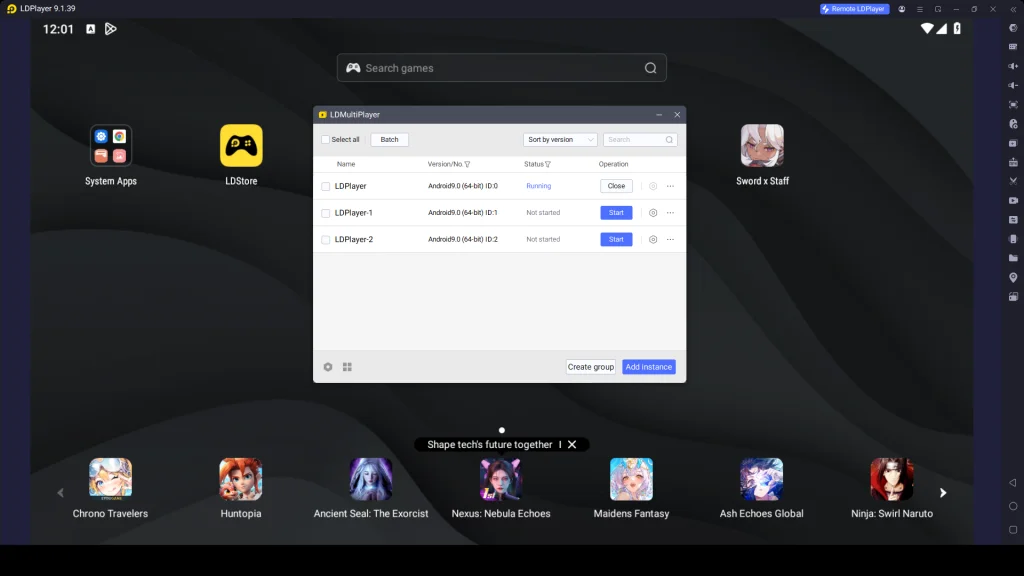
These features let you run multiple emulator instances simultaneously, login to various accounts in Roblox and switch between them right away. This means you can easily switch across multiple accounts to play different games to save time and enjoy a smoother Roblox gaming experience.
How to Use Multi-Instance for Roblox:
-
Open LDMultiplayer (Multi-Instance Manager) from the LDPlayer main window
-
Click Create New Instance to launch additional emulator windows
-
Clone your main instance if you want the same base settings across multiple accounts
-
Launch Roblox in each instance and log in with different Roblox accounts
-
Use the Synchronizer Tool to control all instances simultaneously (ideal for synchronized farming or event participation)
-
Easily switch between instances to enjoy different games without logging in and out repeatedly
-
Run multiple accounts for resource grinding, trading, or playing with friends or any other purposes.
Conclusion
That's everything you need to start playing Roblox on PC with LDPlayer 14. In this guide you have everything you need to know, from installing the emulator, resolving common issues, using features like Keyboard Mapping and Multi-Instance to enjoy a smoother gameplay experience right through your PC. So, download LDPlayer 14, get the Roblox app, explore your favorite Roblox games, and enjoy better performance through a bigger screen on your PC.
