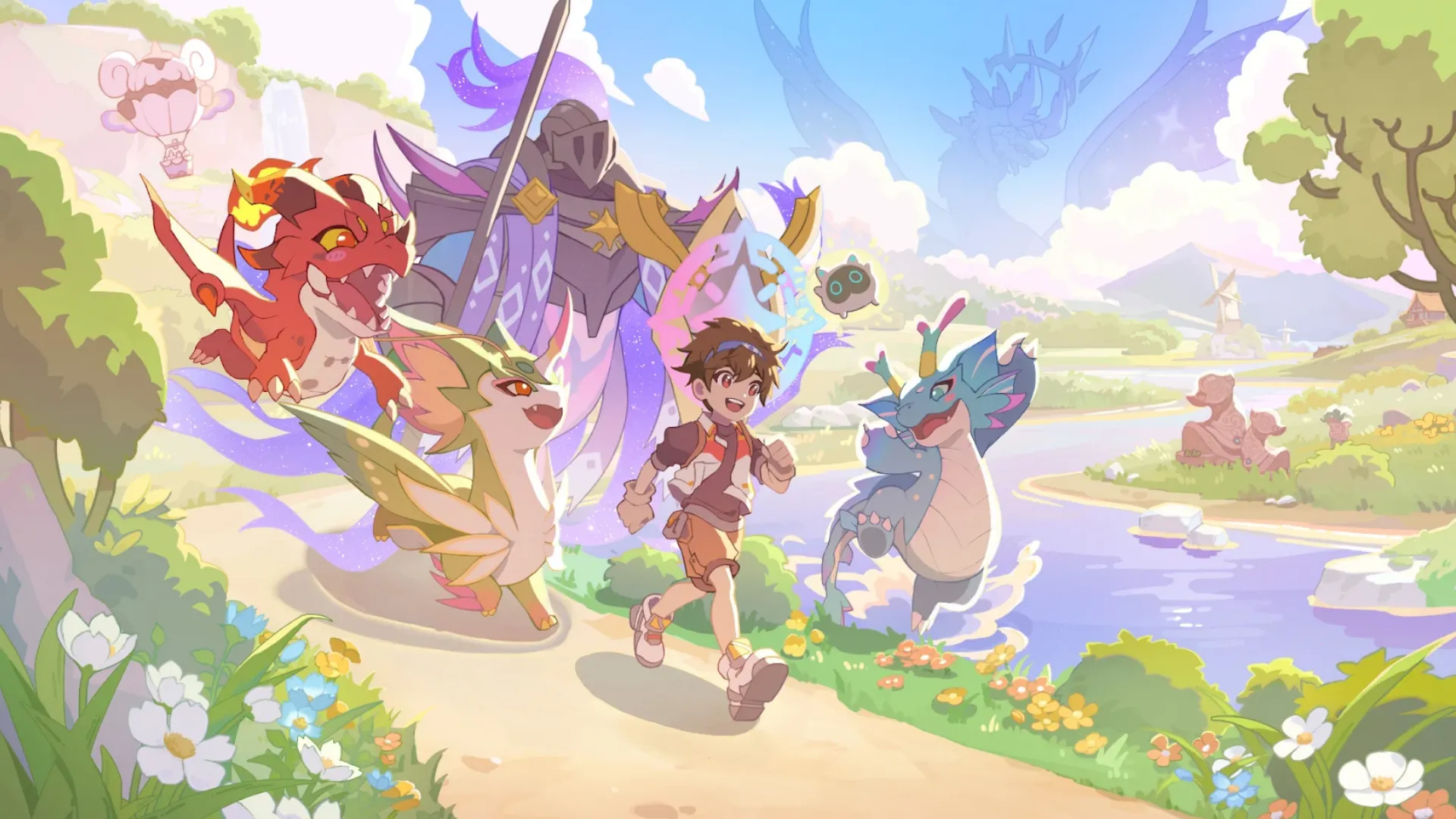
Lumi Master, from BILIBILI HK LIMITED, is a portrait creature collector built around short loops. You will spend Energy on the Starlit Compass, throw a Lumi Card, train what you catch, and park spare Lumis on Home jobs. It is not a reflex shooter. That matters, because not every emulator feature helps here. High frame rate, a readable resolution, and a small keyboard map do. Playing Lumi Master on PC now fixes that without changing the game. LDPlayer runs the official Android build on Windows, so the same Google or linked account, the same Lumidex, and the same Home carry over. What changes is the screen, the input, and how long you can leave a session open. So, how to play Lumi Master on PC with better settings through LDPlayer? We’ll find out today.
What You Need before the First Launch of Lumi Master
Lumi Master global package is about 200MB, and the Play listing targets Android 8.0 and up, so this is not a heavy install. The emulator overhead is what actually decides whether Lumi Master PC feels smooth.
So, here is what you will need before you launch Lumi Master:
|
Part |
Comfortable single account |
Multi-instance farming |
|
OS |
Windows 10 or 11, 64-bit |
Same |
|
CPU |
4-core Intel or AMD, VT enabled |
Recent 6-core or better |
|
RAM |
8GB system, 4GB given to LDPlayer |
16GB if you want 3–4 windows |
|
GPU |
OpenGL 4.0 or DirectX compatible |
Discrete GPU preferred |
|
Disk |
5GB free, SSD if you have one |
Extra space per cloned instance |
|
Display |
1080p is enough |
Same; do not stretch every window to 4K |
Make sure that you turn on Intel VT-x or AMD-V in BIOS before you install. Without virtualization, LDPlayer still opens, but exploration stutters and a second instance is usually a lost cause. Windows 7 can run older builds, yet Windows 10 or 11 is the setup that stays stable with current Play Store sign-in.
Install Lumi Master on PC
The next step is to install Lumi Master on your PC. For that, download LDPlayer only from the official site. Third-party repacks are the usual source of broken keyboards and surprise toolbars. And then:
- Install LDPlayer 9 if you want the widest game compatibility. Switch to LDPlayer 14 only if the Play Store refuses the package or you specifically want the Android 14 kernel. Lumi Master does not require Android 14.
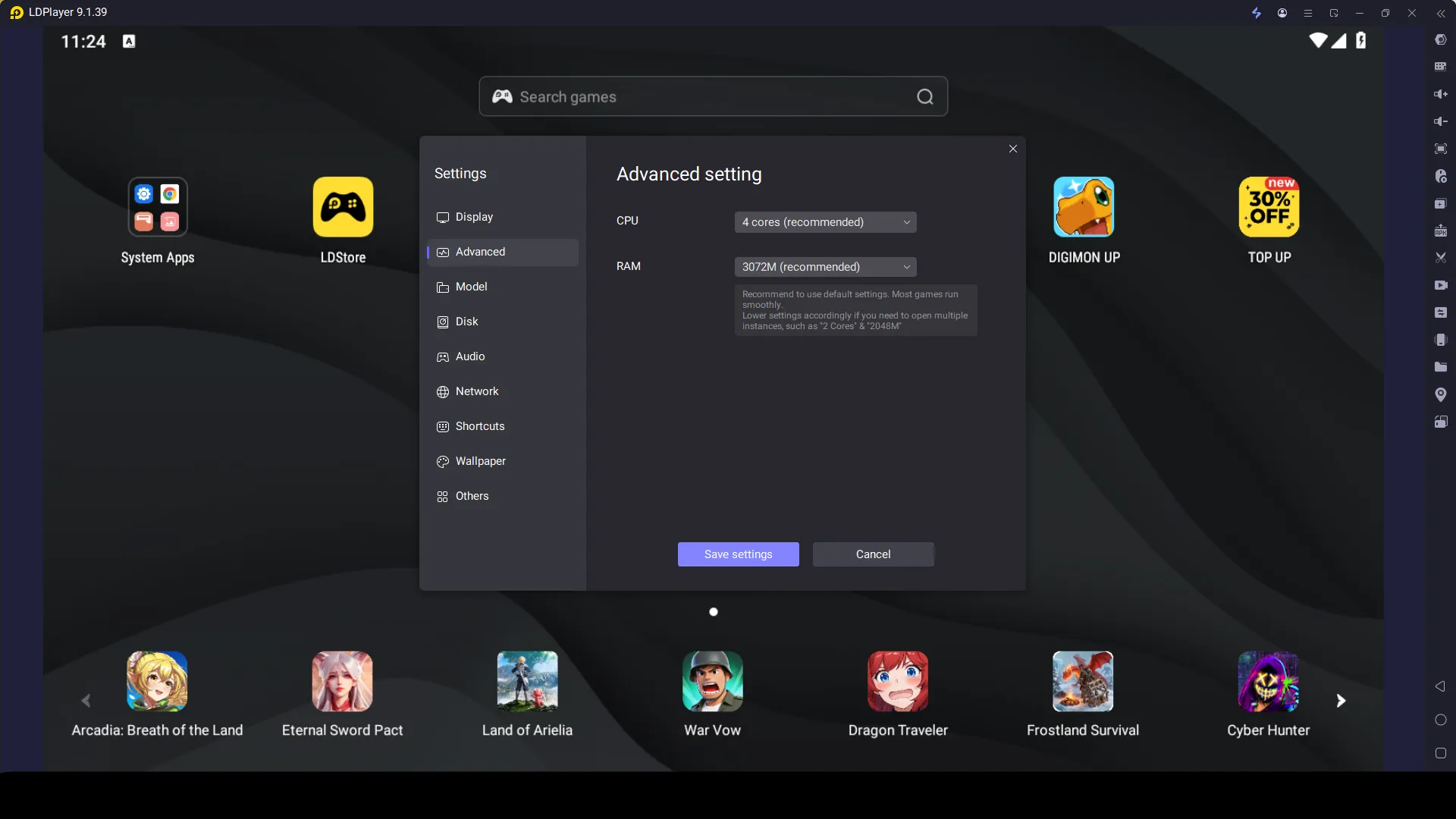
- Launch the emulator, open Settings, and assign 4 CPU cores and 4GB RAM for one account. More cores will not make the compass faster.
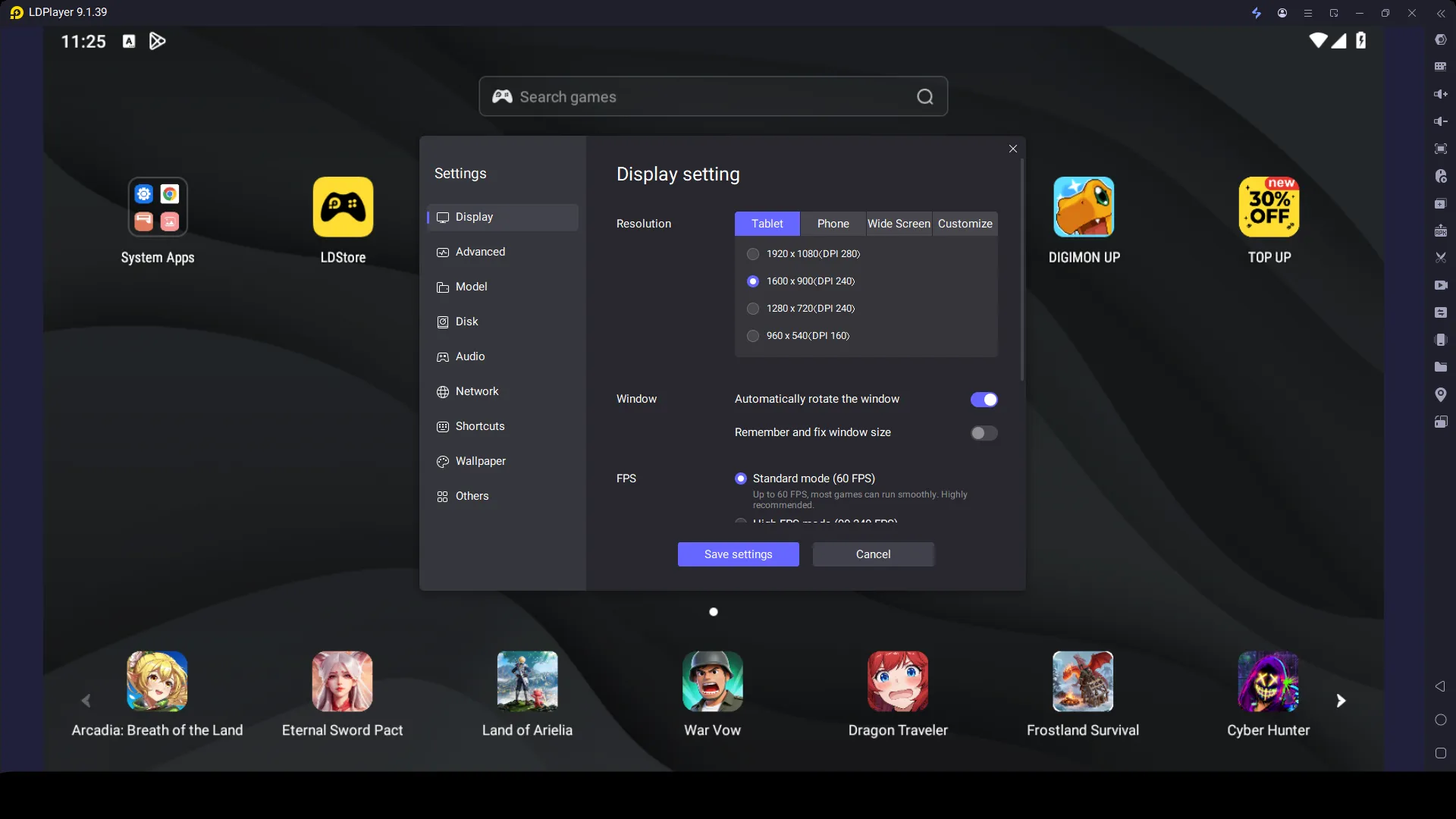
- Set resolution to a portrait-friendly size, such as 1080×1920 or a tablet profile around 1600×900. The game was drawn for a vertical phone screen, and a wide landscape stretch makes the Lumidex harder to read, not easier.
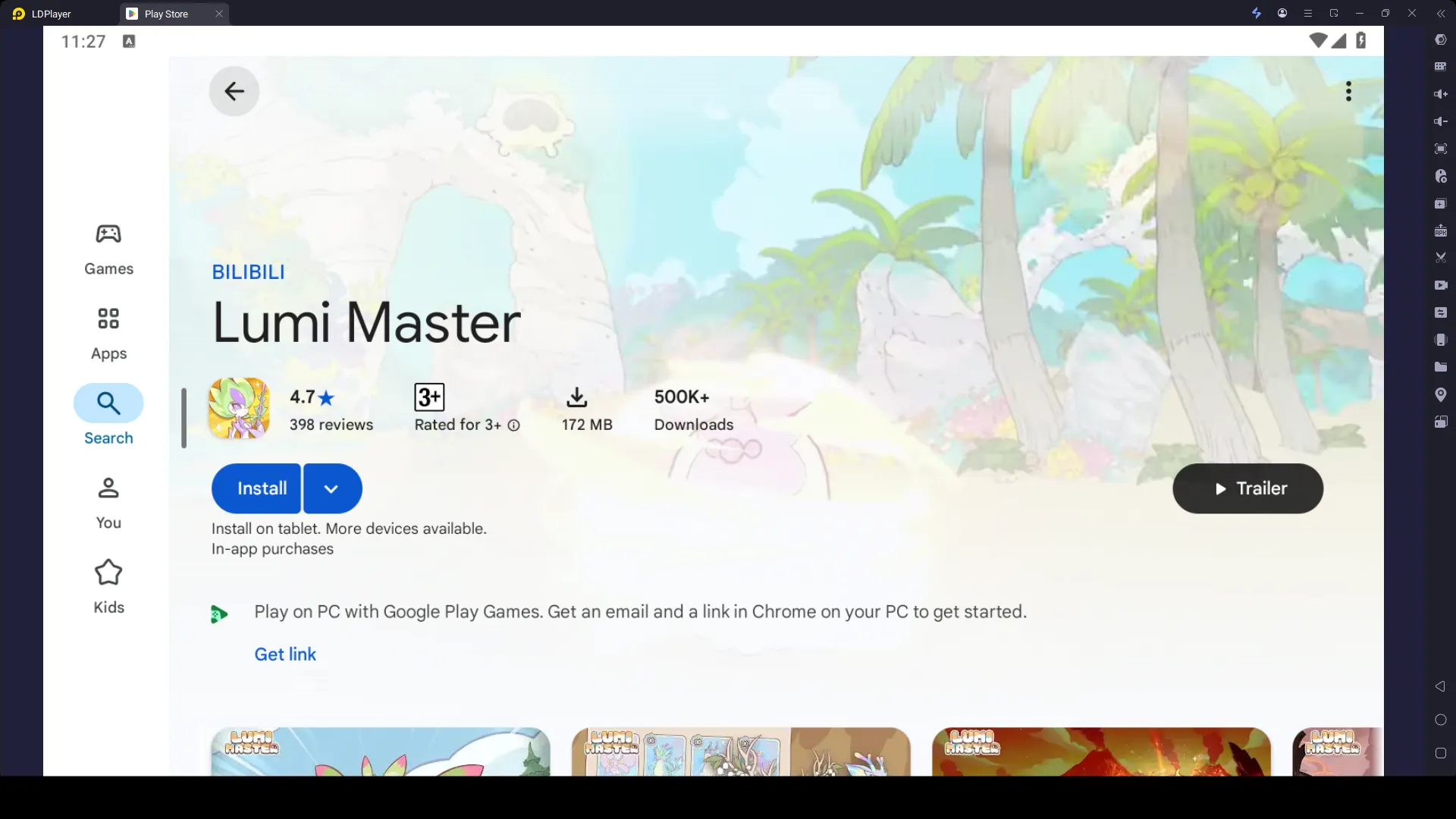
- Sign in to Google Play inside LDPlayer, search Lumi Master, and install the build from BILIBILI HK LIMITED.
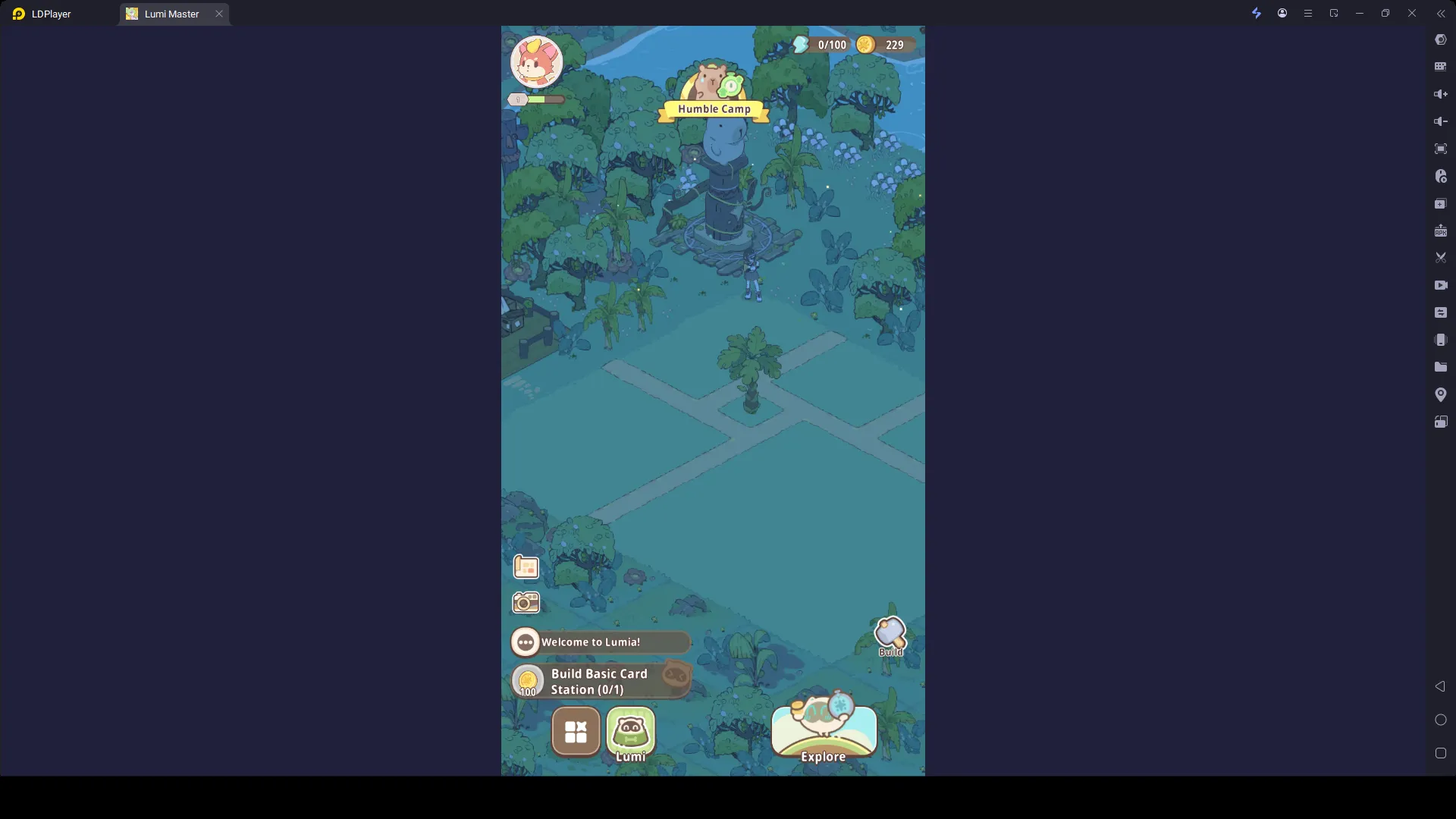
- Open the game, finish the first-launch download, and link the same Google, Facebook, or in-game account you use on your phone before you catch anything important.
If Play Store search fails, confirm the emulator date and time match your PC, then update Google Play Services from inside the instance. Dragging a random APK in is a last resort, and only from a source you already trust. An unofficial package will not sync with the live account.
Why Playing Lumi Master on PC Feels Better?
On a phone, Lumi Master is built for one hand. But on a monitor, the same tap loop becomes a desk session, which is exactly where the best Android emulator: LDPlayer earns its place.
The Lumidex is the clearest win. Attack, Defense, HP, and Work sit next to type, trait, and skills, and those four aptitude values are how you decide whether a catch is worth fruit. On a phone those numbers blur together. On PC you can leave a type chart or a note beside the window and compare a new roll before you spend Evolution Fruit. Evolving also rerolls rarity, so a Green starter is not a dead end, but fruit spent on a Lumi you meant to trade is fruit you do not get back.
Catching is the second win. The Starlit Compass shows a catch rate before you commit, and a well-timed throw can raise that rate by up to 1.5×. A mouse click on the throw is simply more repeatable than a thumb on a small portrait screen. Keyboard mapping does not replace that click. It clears the busywork around it.
Keyboard Mapping that Matches the Game
Open the Keyboard Mapping from the LDPlayer sidebar, or press F12, once the game is running. Save a scheme named Lumi Master so an update does not wipe it.
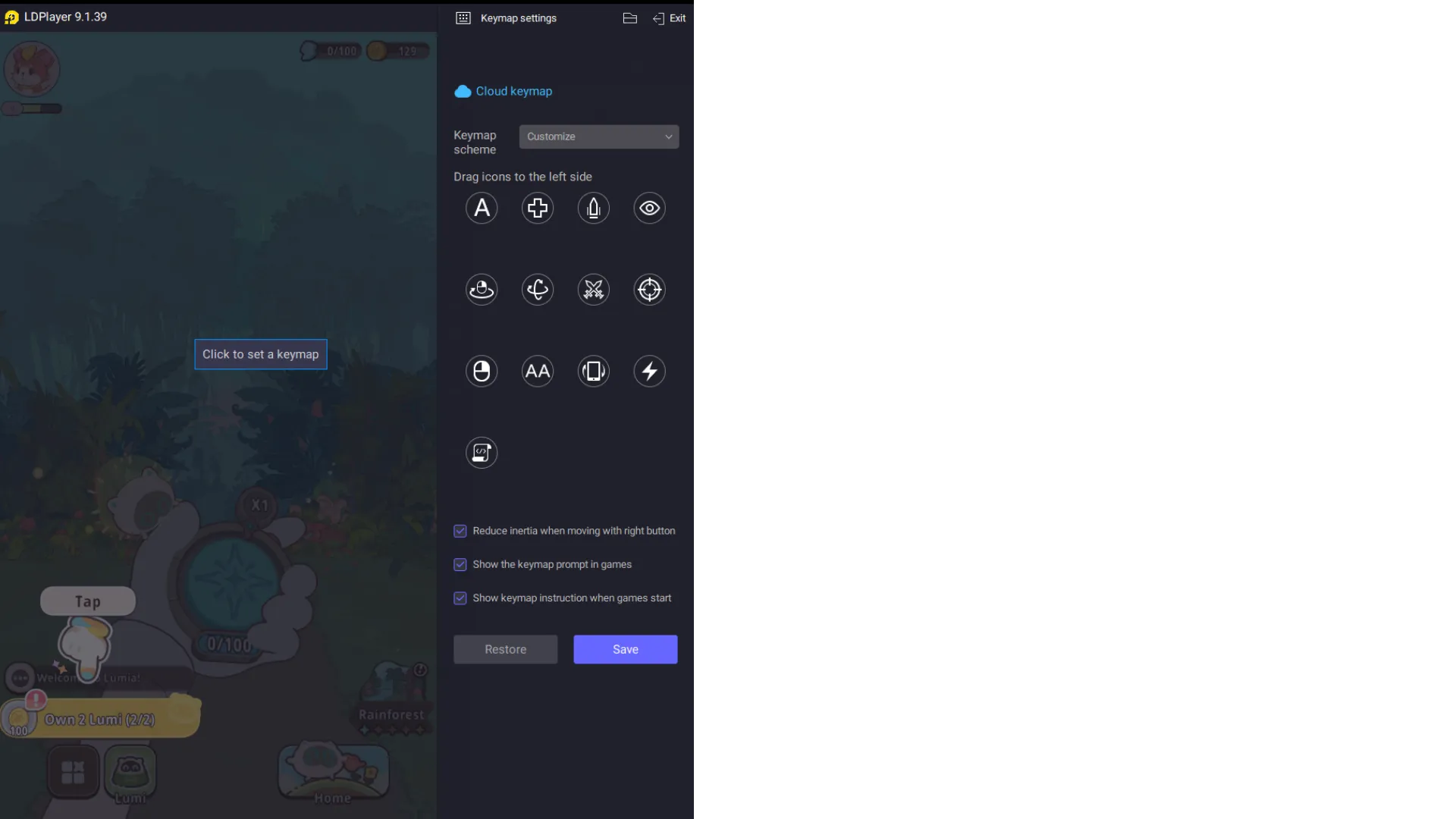
Map only the actions you hit every minute:
- Space for the compass advance, so exploration does not depend on hunting a tiny button.
- Left click for the card throw and for confirm prompts. Leave the throw on the mouse. The timing bonus is a short window, and a mapped key adds nothing a click does not already do better.
- 1, 2, and 3 for battle skills. Fights are real-time, not turn-based: the front Lumi attacks on its own, and you tap a skill once Energy is high enough.
- Q and E for swapping the active Lumi. Entry effects retrigger on a swap, which is a real Arena trick, and keys make that swap faster than a menu tap.
- Esc for back, so you can leave a Lumidex page without misclicking a trade.
It is better to skip a full WASD overlay here. Exploration is a fixed path, not a free camera. A movement stick mapped over the compass just fights the UI. A gamepad works through the same mapper, but it is optional here. Card timing and Home placement both prefer a mouse.
FPS, Resolution, and the Settings that Stop Stutter
Lumi Master’s hand-drawn look does not need a competitive frame rate to be readable. It does need a stable one, because the throw window and skill taps feel late when the emulator is hitching.
Start at 60 FPS, 4 cores, 4GB RAM, and a 720p or 1080p portrait resolution. That is the setting that stays smooth on a mid-range PC while you chain compass steps. Raise the emulator to 120 FPS only after a few minutes of exploration stay flat. LDPlayer can offer 120 frames. The game will not invent frames its own engine is not producing, and a 60Hz monitor will not show them anyway. If crowded Home screens dip, drop resolution before you drop cores.
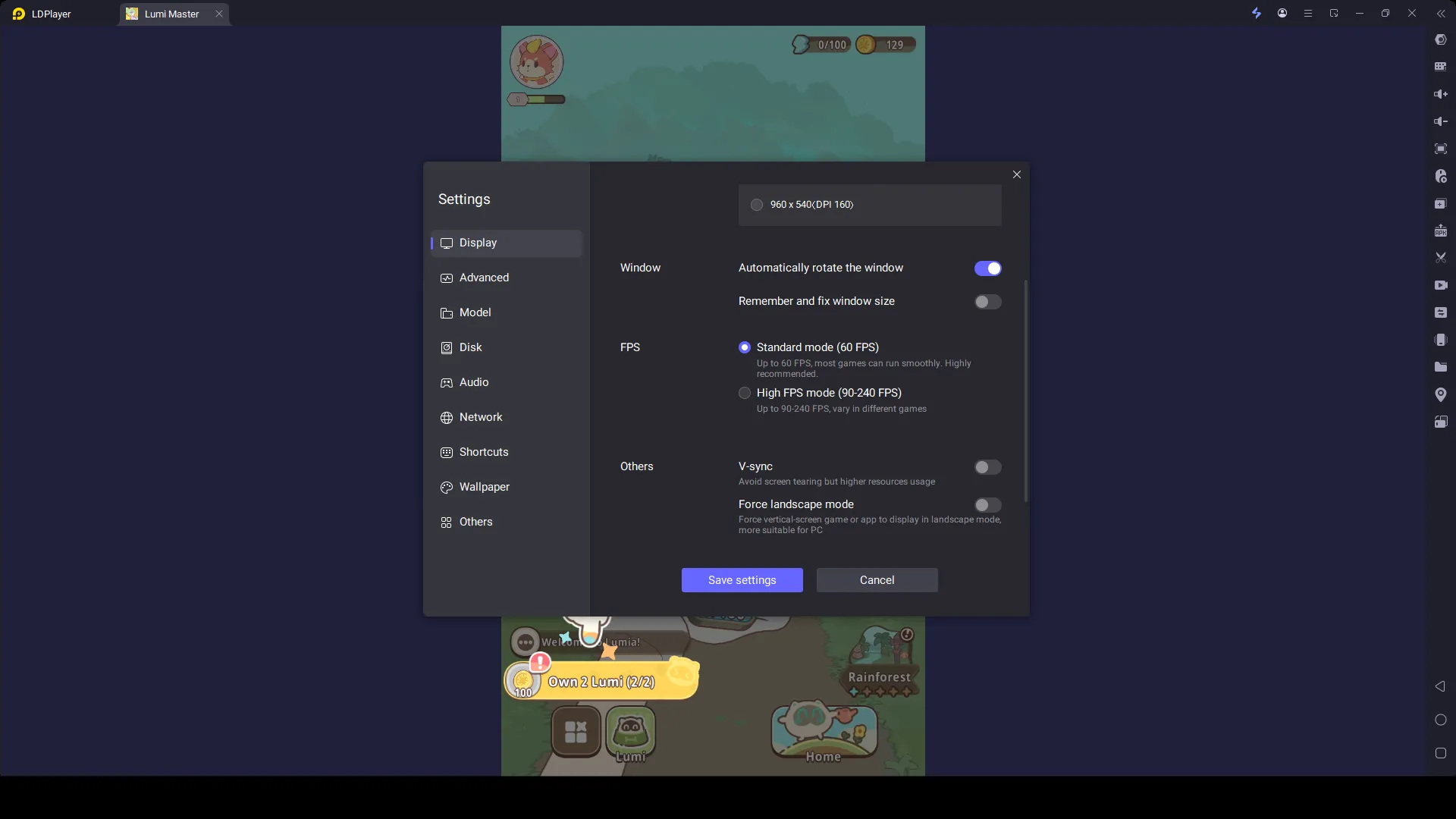
Renderer choice is the other lever. Discrete NVIDIA or AMD cards usually prefer DirectX. Integrated graphics often prefer OpenGL. If the art smears or the window opens black, switch once, restart the instance, and test. Do not flip renderer, FPS, and resolution in the same reboot or you will not know which change fixed it.
Multi-Instance, Sync, and Macros — Use them Narrowly
LDPlayer’s Multi-Instance Sync can run a second Lumi Master account beside the first. That is genuinely useful, because Energy is the gate on exploration and a second Home keeps producing while you play the main account. Clone the instance only after the first one is fully updated and logged out of your main Google account, then sign the alt into its own Play account.
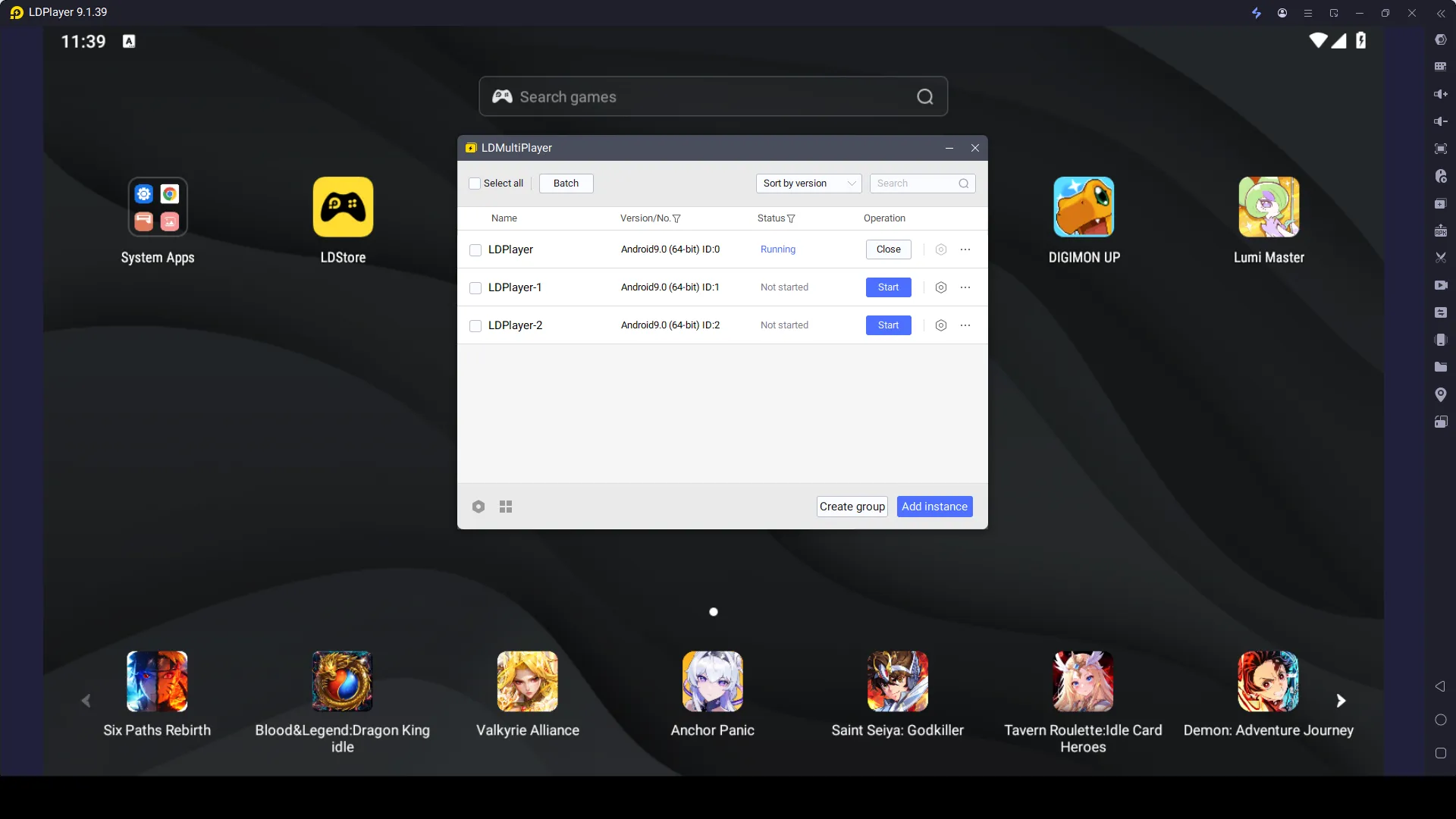
Two limits show up fast. First, each window wants its own RAM. Three or four instances is a 16GB-PC job, not an 8GB one. Second, the synchronizer assumes every window is on the same screen. Lumi Master rolls random encounters, so one account hits a catch prompt while another is still walking. Syncing the compass is fine for a shared menu. Syncing a catch will waste cards.
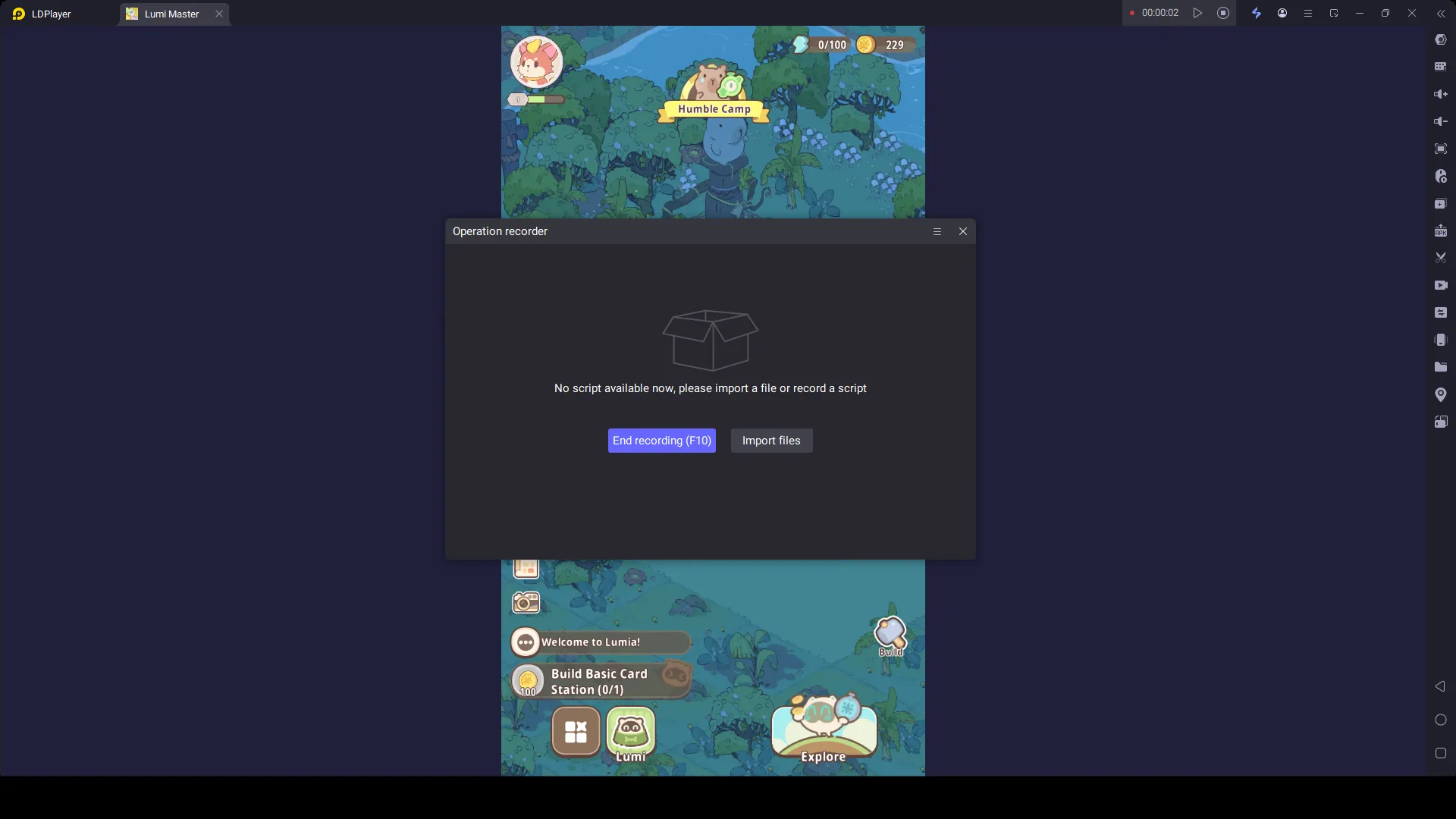
The Operation Recorder has the same boundary. It is reasonable for a fixed daily path: open mail, claim the daily chest, collect a Home order. Record that once, bind it to a key, and stop. Do not record the throw. The bonus depends on timing, the button shifts when two Lumis appear at a high multiplier, and a macro that spends cards or premium currency is how accounts get flagged. LDPlayer will play the script. The game still sees the inputs.
A First Session to Not Waste Energy
Once the window is stable, the game itself is the short loop the phone version promised, just easier to read.
Pick any of the three starters. Fire, Grass, and Water do not lock the early map. Link the account, claim the launch Rainbow Lumi Egg if it is still in the mail, and open Home before you empty the Energy bar. Assign the first Lumi to a production slot. Home jobs keep running while the emulator stays open, which is the whole point of leaving Lumi Master on PC instead of in a pocket.
Then spend Energy in chunks, not one tap at a time. A ×1 step can surface a blue Lumi. Higher multipliers are what add a real chance at gold and rainbow catches, and at ×20 or ×50 you can meet more than one Lumi in the same encounter. Rainbow traces do not show up on the cheapest steps. Banking Energy and spending it at ×10 or above is the habit that fills the Gallery. Sitting at the cap is the habit that wastes regen, because natural recovery pauses while you are full.
In a fight, watch the type icon before you lead. Fire pressures Steel and Earth and folds to Water. A squad of three different types survives a bad matchup. A squad of one type does not. Extra team slots open as exploration level rises, so the first hour is about coverage, not a perfect rainbow.
Download LDPLAYER, play Lumi Master on PC, enhance your gaming experience!


Troubleshooting
If you lag your Lumi Master on PC gameplay, just close the synchronizer and the recorder, set 60 FPS, and restart the instance before you reinstall. A black screen after a driver update is almost always the renderer. Switch DirectX and OpenGL, then restart once.
If progress from the phone is missing, you are on a different login, not a different game. Link Google or the in-game account on the phone first, then use that same login in LDPlayer. Guest progress does not survive a new instance.
Google Play Games on PC can also list Lumi Master, with a higher bar: Windows 10 version 2004, an SSD, 8GB RAM, and virtualization. LDPlayer remains the route that adds key mapping, a portrait window you can resize, and a second account without a second phone.
People Also Ask
Can I keep my phone Lumis if I move to LDPlayer?
Yes, if both devices use the same linked login. Bind Google, Facebook, or the in-game account on the phone before you install on PC. A guest session on either side will not merge later.
Will an emulator account get banned for playing on PC?
Installing from the Play Store inside LDPlayer is ordinary PC play, and there is no public emulator ban for this game. What causes trouble is scripted spending, card macros, or shared logins. Manual play and a second account you actually own are the safe line.
Is LDPlayer the only way to play Lumi Master on Windows?
No. Google Play Games on PC also lists it, with stricter hardware rules and no multi-instance tools. LDPlayer is the better fit if you want a resized portrait window, skill keys, or a second Energy account on the same desk.
Conclusion
Playing Lumi Master on PC with LDPlayer is less about chasing 120 FPS and more about making the catch loop readable. Give LDPlayer 4 cores and 4GB, lock 60 FPS until the art is stable, map the compass and the three skills, and leave the throw on the mouse. Use a second instance for another Energy bar if the PC can spare the RAM, and leave macros on mail and dailies only. Link the account before the first rare catch, and the phone save and the desktop save stay the same game.
More from Lumi Master: